Shopify robots.txt.liquid: How to Customize It Without Hurting SEO
Shopify robots.txt.liquid is the template Shopify lets you use to override the default robots.txt it generates for every store. This file controls what search engines crawl, so a small mistake here can quietly hurt your rankings. This guide shows where the file lives, what Shopify blocks by default, and how to change it without breaking anything.
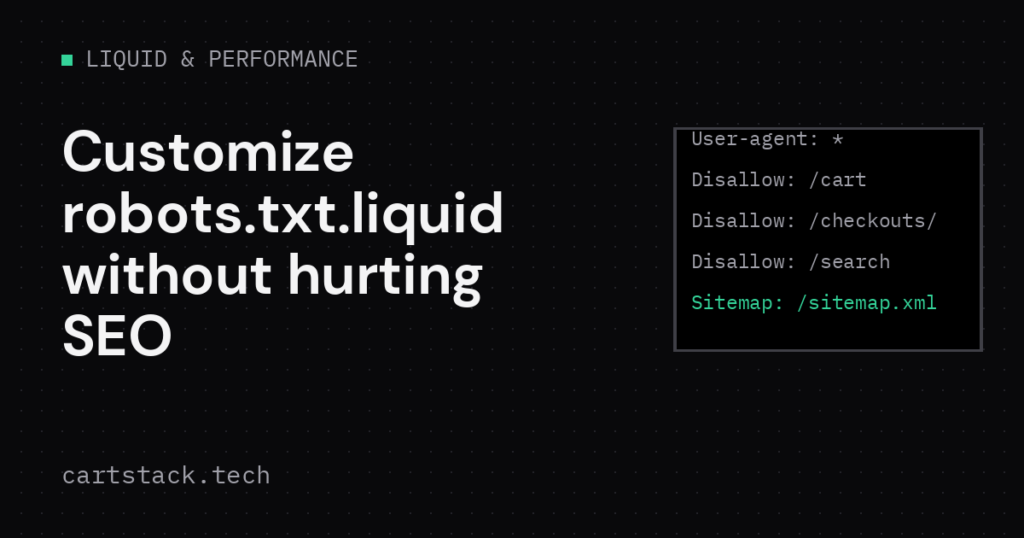
Where Shopify robots.txt.liquid Lives
Open the theme editor, then Edit code, then look for templates. If the file does not exist yet, add a new template and choose robots.txt.liquid. Shopify then serves your version instead of the generated default at yourstore.com/robots.txt.
Once Shopify robots.txt.liquid exists as a template, you own the whole output. Therefore, copy the default content first, then add only the specific change you need on top of it.
What Shopify blocks by default
Shopify’s generated robots.txt already disallows a set of paths that have no SEO value, including cart, checkout, account pages and internal search results. It also blocks the ref query parameter and other tracking variants of a URL to avoid duplicate content.
| Path pattern | Why it is blocked |
|---|---|
| /cart, /checkouts/ | No indexable content, personal per session |
| /account, /orders | Customer-only pages |
| /search | Internal search results, not real pages |
| *?variant= | Duplicate of the canonical product URL |
Keep these rules unless you have a specific reason to remove one. They exist because those pages create duplicate or low-value content at scale.
Add or remove a rule safely
Shopify structures the default template as a loop over rule groups, so you extend it instead of rewriting the whole file by hand.
{% for group in robots.default_groups %}
  {{- group.user_agent }}
  {%- for rule in group.rules %}
    {{ rule }}
  {%- endfor %}
  {%- if group.sitemap %}
    {{ group.sitemap }}
  {%- endif %}
{% endfor %}

User-agent: *
Disallow: /pages/internal-only
This keeps every default rule from Shopify, then appends one custom line at the end. Adding your rule after the loop, rather than replacing it, is what keeps you from losing the built-in protections by accident.
Common mistakes that hurt SEO
- Blocking a whole collections or products path by mistake, which removes real pages from search.
- Removing the sitemap line while customizing the file.
- Copying a robots.txt from a different platform, which references paths that do not exist on Shopify.
- Blocking a path that a marketing campaign still links to from outside your store.
A blocked page is not the same as a noindex page. Blocking crawling in robots.txt actually stops Google from reading a noindex tag on that page, so the URL can still appear in search without a snippet. For pages you truly want out of search, use a noindex tag instead of a disallow rule.
Test your changes
After publishing Shopify robots.txt.liquid, load yourstore.com/robots.txt directly and confirm the output looks right. Then use a URL inspection tool, such as the one in Search Console, to confirm a specific page is still crawlable if it should be.
For the full default rule set and supported objects, see the Shopify robots.txt.liquid documentation. If your goal is a faster, cleaner theme overall, pair this with Shopify Liquid performance fixes.
Related reading: for the bigger picture on how AI agents find products, see the Shopify Agentic Commerce guide.
FAQ about Shopify robots.txt.liquid
Do I need this file if I have no special rules? No. Shopify’s default already covers common cases well.
Can robots.txt hide a page from search results? Not reliably. Use noindex for that, and disallow only for crawl budget control.
Does editing this file affect every store market or domain? Yes, it applies theme-wide, so test carefully on a duplicate theme first.
Keep reading
Shopify Hydrogen Developer Preview: Any JavaScript Framework
Shopify Hydrogen developer preview explained: a framework-agnostic SDK with Vue bindings, agent skills and setup for Next.js, Nuxt and more.
Shopify Liquid Block and Partial Tags: What the July 2026 Preview Changes
Shopify Liquid block and partial tags from the July 2026 developer preview: how they work, how they differ from render and content_for, and how to test them.

Shopify Hydrogen vs Liquid: When Going Headless Pays Off
Shopify Hydrogen vs Liquid compared: what your team owns, where performance work diverges, the hidden costs, and a decision rule for going headless.